Viewing and managing your chargers
What the charger cards show, what the statuses mean and how to connect one.
Your connected chargers appear in two places: as cards on your dashboard, and on the dedicated Chargers page in the menu (which appears as soon as you connect your first one). Each card shows at a glance which charger it is and what it's doing right now.
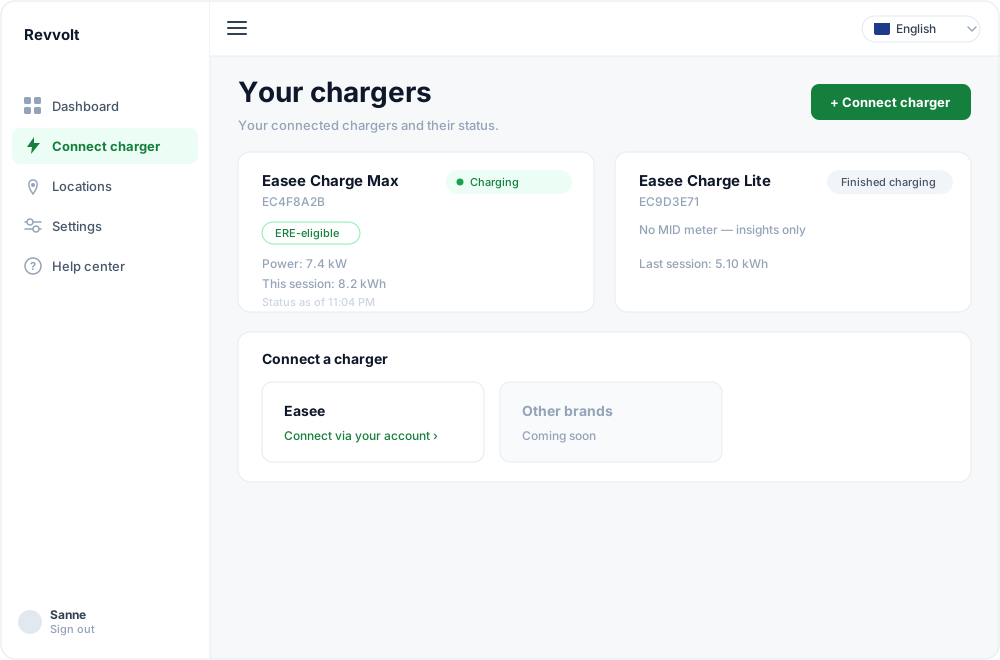
What a charger card shows
- Name — brand and model, for example Easee Charge Max.
- Serial number — shown underneath, handy for support.
- Status label (top right) — the charger's current state, see below.
- ERE-eligible — a green label when the charger has a built-in MID meter. Only a certified measurement lets us register EREs. Chargers without a MID meter show "No MID meter — insights only".
The statuses
| Status | Meaning |
|---|---|
| Charging | A charge session is running now. |
| Plugged in | The car is connected but (not yet) charging. |
| Finished charging | The last session has completed. |
| Standby | Connected and ready, no car attached. |
| Offline | We temporarily have no connection to the charger. |
| Error | The charger reports a fault. |
Below the status is the time we last reached the charger ("Status as of 11:04 PM").
"This session" versus "Last session"
This distinction sometimes causes confusion, so to be precise:
- While the charger is charging, we show This session: … kWh — a live meter reading straight from the charger that climbs as you charge.
- Once a session is finished, we show Last session: … kWh. That figure comes from your stored, normalized charge sessions — the exact same source as the table on your dashboard. That way the card and table always agree.
So the live value while charging can differ slightly from what is later recorded as the completed session; that's normal.
Connecting a charger
No charger connected yet? The Connect charger menu entry takes you straight to the brand picker. Already have one and want to add another? Open the Chargers page and click Add charger. Pick your brand — for Easee you sign in with your Easee account; we then automatically fetch your charger and your full charging history. It's described step by step in Connecting your Easee charger.
After connecting, assign the charger to a location so we know where the electricity is delivered.
Ready to earn with your charger?
Create a free account — Revvolt handles NEa registration, the sale and the payout of your EREs.